

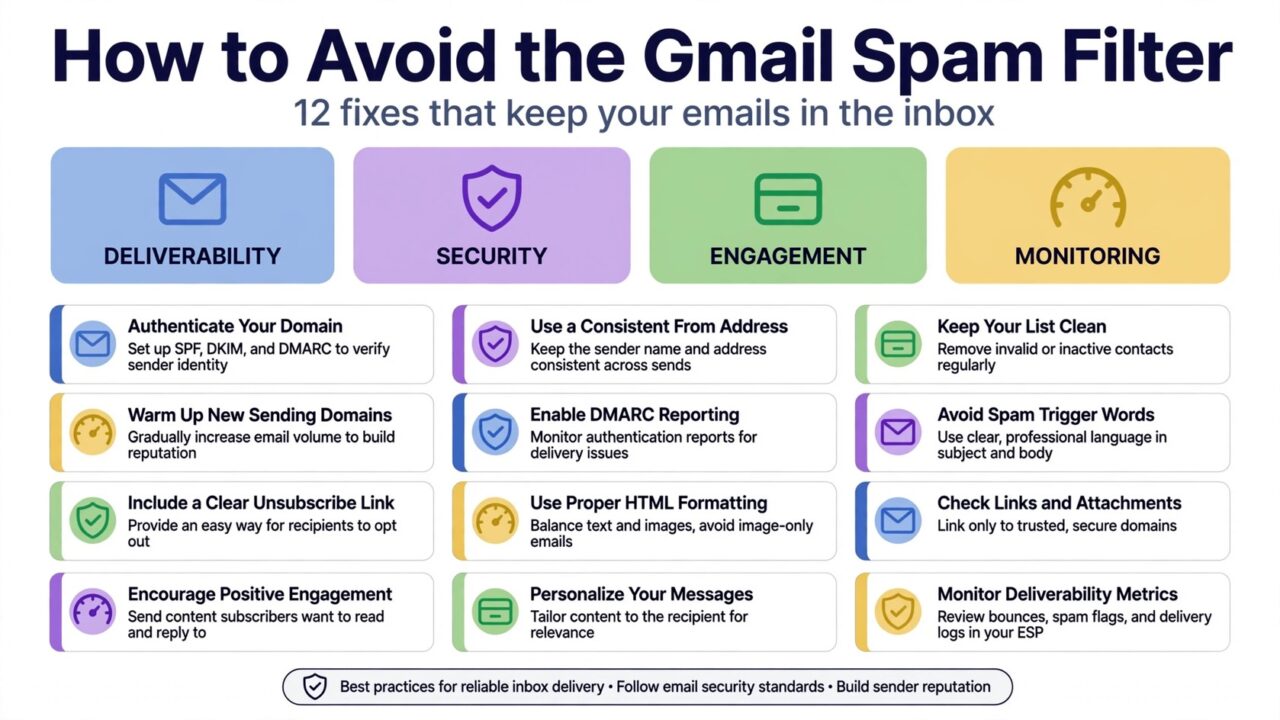
Why Your Emails Land in Gmail Spam
If your emails keep landing in the Gmail spam folder, the problem is rarely one bad subject line. Gmail looks at the whole picture: who you are as a sender, whether your authentication is set up, how recipients react to your mail, and whether your list is clean. When any of those signals looks weak, Gmail plays it safe and filters your message out of the inbox.
The good news is that most Gmail spam problems are fixable. You do not need tricks or shortcuts. You need to meet Gmail’s published sender requirements, send to people who actually want your mail, and keep your list healthy over time. This guide walks through 12 practical fixes you can apply step by step.
First, Understand How Gmail Decides
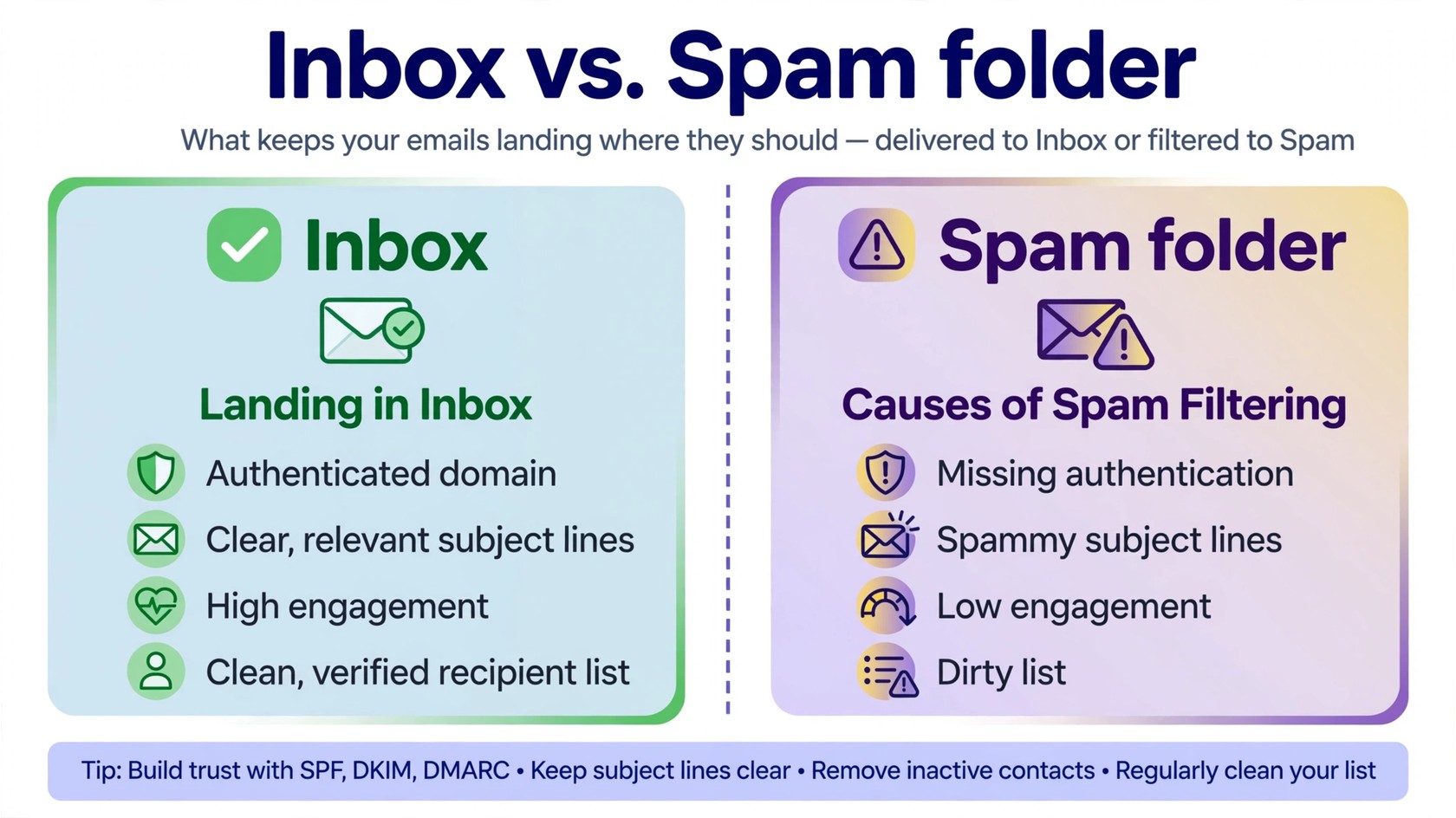
Gmail uses a mix of authentication checks, reputation signals, content signals, and engagement signals. Authentication proves the message really came from your domain. Reputation reflects how your domain and sending history have behaved. Content signals include misleading subject lines, heavy use of link shorteners, and deceptive formatting. Engagement signals include opens, replies, messages moved out of spam, and spam complaints.
No single factor decides placement on its own. A new domain with perfect authentication can still struggle if it blasts a cold list. A trusted sender can still land in spam if one campaign triggers a wave of complaints. That is why the fixes below cover the full system, not just one setting. If spam placement is a problem across other providers too, start with our guide on how to improve email deliverability, then apply the Gmail specific steps here.
Gmail’s Bulk Sender Requirements: The Non-Negotiables
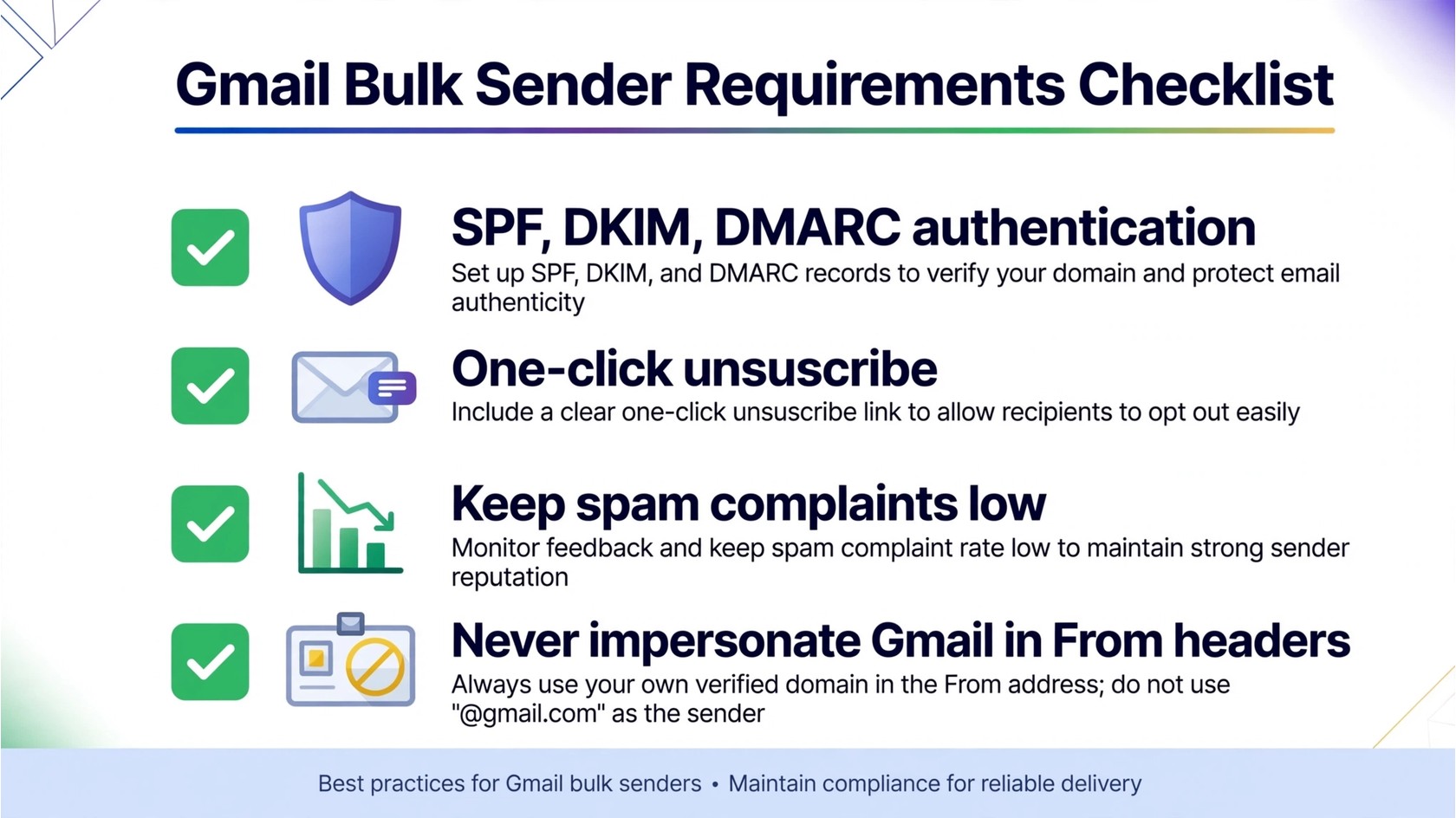
Google publishes Email sender guidelines that apply to everyone, with stricter requirements for bulk senders. Google defines bulk senders as senders who send 5,000 or more messages per day to Gmail accounts. If you are anywhere near that volume, treat these requirements as mandatory.
The core requirements are clear. You must authenticate with SPF, DKIM, and DMARC, with DMARC alignment in place. You must give recipients a simple one-click unsubscribe option, and honor unsubscribe requests promptly. You must keep your spam complaint rate under 0.10 percent, and never let it rise above 0.30 percent. You must not impersonate Gmail in your From headers, and you must not use deceptive headers or misleading subject lines. Our guide on email deliverability terms explains these terms in plain language if you need a refresher.
12 Fixes That Keep Your Mail in the Gmail Inbox
1. Set Up SPF, DKIM, and DMARC Correctly
Authentication is the foundation. SPF lists which servers may send mail for your domain. DKIM adds a signature that proves the message was not altered. DMARC ties them together and tells receiving servers what to do when a message fails the checks. Check your DNS records, include every service that sends on your behalf, and fix alignment problems before you scale up volume.
2. Add One-Click Unsubscribe and Honor It Fast
Google requires bulk senders to support one-click unsubscribe through the List-Unsubscribe header, which lets Gmail show an unsubscribe link at the top of your message. A visible unsubscribe link is a safety valve. It is far better for a tired subscriber to unsubscribe than to mark you as spam, because spam complaints damage your reputation much more than unsubscribes.
3. Keep Your Spam Complaint Rate Low
Your spam complaint rate is the share of your messages that recipients mark as spam. Google’s guideline is to keep it under 0.10 percent and never above 0.30 percent. The most reliable way to stay under that line is to send only to people who asked for your mail, use a familiar sender name, and make unsubscribing easy. If complaints rise, pause and fix the cause before you send again. If your mail was already flagged, read our guide on what happens when email is marked as spam.
4. Never Impersonate Gmail or Use Deceptive Headers
Do not use Gmail branding, Gmail addresses, or Gmail-like headers to make your mail look like it came from Google. Do not use a From name that implies you are someone else. Use your own domain, your real brand name, and honest headers on every message. The same rule applies to subject lines: do not promise something the email does not deliver.
5. Warm Up New Domains and New IPs Slowly
Gmail is cautious with senders it has never seen before. A brand new domain that suddenly sends thousands of messages looks risky, even if every message is legitimate. Start with your most engaged subscribers, keep volumes modest, and increase gradually as Gmail builds a positive history for your domain.
6. Send Only to People Who Asked for Your Mail
Purchased lists are one of the fastest ways to ruin Gmail placement. Those addresses did not ask to hear from you, so they complain, ignore, or bounce at high rates. Build your list from your own signups, customers, and confirmed opt-ins. If you already have a list with unknown origins, keep the subscribers who signed up directly and engaged recently, and let the rest go.
7. Verify Every Address Before You Send
Invalid addresses bounce, and repeated bounces hurt your reputation. Catch-all addresses, role addresses, and mistyped signups add risk too. Verify your list before important campaigns, and verify new signups at collection so bad addresses never enter your list. PureListVerifier can check your list before you send. See features for what a verification pass covers, and pricing for plan options.
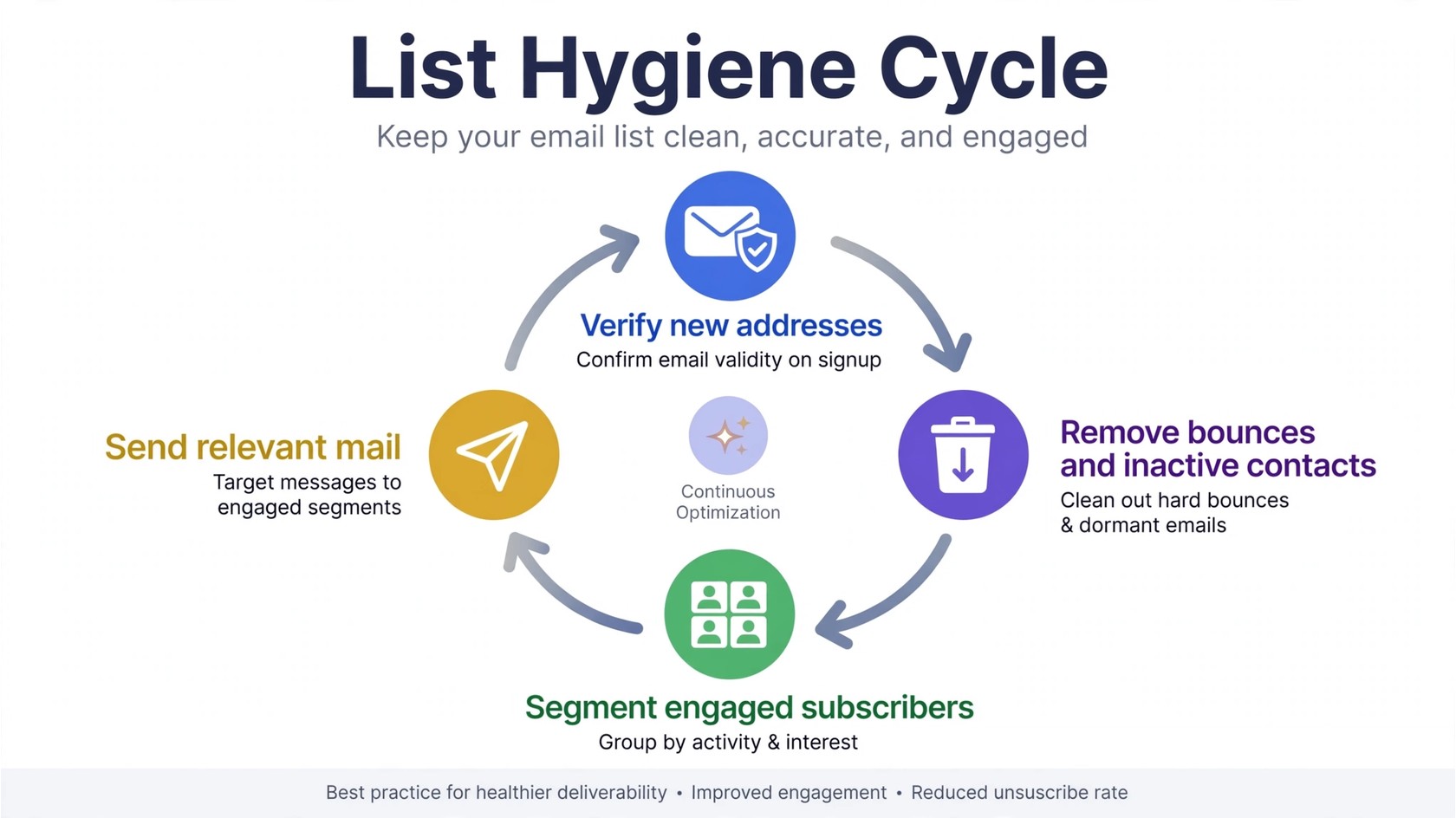
8. Remove Inactive Subscribers on a Schedule
Subscribers who never open, never click, and never reply are not neutral. Over time, a large inactive segment drags engagement down and raises the chance that stale addresses turn into bounces or complaints. Send a short win-back message to inactive subscribers, then remove those who do not respond. Keep the engaged core and let the rest go.
9. Write Subject Lines That Match the Message
Avoid all caps, excessive punctuation, and promises that the email does not keep. Write a subject line that describes the actual content. If the email is a weekly update, say so. If it is a discount, state the offer plainly. Test subject lines with a small segment before a full send, and do not reuse a version that drew complaints.
10. Balance Links, Images, and Text
Emails that are one giant image, or a wall of links with almost no text, look like the patterns filters are trained to catch. Use a normal mix: real text, a reasonable number of links, and images that support the message. Link to your own domain and to reputable pages. Avoid URL shorteners that hide the destination, because hidden links look suspicious.
11. Make Engagement Easy
Positive engagement helps Gmail see your mail as wanted. Replies, stars, moves to folders, and messages marked as not spam all send useful signals. You cannot force engagement, but you can earn it by sending relevant mail, asking clear questions, and making replies simple. Ask readers to reply with a short answer, or to save your address in their contacts.
12. Segment by Engagement and Send Relevant Mail
Not every subscriber wants every email. Segment your list by interest, recency, and behavior, then send each group mail that fits. Highly engaged subscribers can receive more frequent mail. Less active subscribers should receive less mail, or only your best content. Segmentation reduces complaints because people receive fewer irrelevant messages.
Use Google Postmaster Tools to See What Gmail Sees
Google Postmaster Tools is Google’s free dashboard for senders. It shows your domain reputation, IP reputation, spam complaint rate, authentication pass rates, and delivery errors. If you send meaningful volume to Gmail, set it up. It will not fix problems on its own, but it tells you where to look. Our guide on domain reputation vs IP reputation explains how these two reputations differ and why both matter.
Check it regularly. If your domain reputation drops, review recent campaigns for list quality, complaint spikes, or authentication failures. Postmaster Tools data lags a little, so use it as a trend signal, not a minute by minute monitor. A steady improvement over weeks is a good sign.
What to Do If You Are Already in Gmail Spam
First, stop and diagnose. Check authentication, check Postmaster Tools, and review your last few campaigns. Look for a list change, a new template, a new sending tool, or a volume jump that lines up with the problem. Fix the root cause before you send more mail, because more mail to the same list will usually make it worse.
Second, clean the list. Verify addresses, remove bounces and long inactive contacts, and drop any segment with unknown origins. Third, restart slowly with your most engaged subscribers and your most relevant content. Ask those readers to mark your mail as not spam if it landed there, and to add you to their contacts. If your domain is on a blocklist, see our guide on how to check an email blacklist and request removal.
A Simple Weekly Routine That Prevents Spam Placement
Once a week, check your authentication records, review Postmaster Tools, and scan your complaint and bounce signals. Verify new signups, remove hard bounces, and move long inactive contacts into a win-back flow. Once a month, do a deeper review of which campaigns earned the best engagement and which earned complaints. This routine takes less time than fixing a reputation problem, and it keeps Gmail placement stable over the long term.
Frequently Asked Questions
Why do my emails go to spam in Gmail?
Gmail filters mail based on authentication, sender reputation, content, and engagement. Missing SPF, DKIM, or DMARC records, a high spam complaint rate, a stale list, or misleading subject lines can all push messages to spam. Check authentication first, then review list quality and Postmaster Tools.
What are Gmail’s bulk sender requirements?
Google requires bulk senders, defined as senders who send 5,000 or more messages per day to Gmail accounts, to authenticate with SPF, DKIM, and DMARC with alignment, to offer one-click unsubscribe, to keep spam complaints under 0.10 percent and never above 0.30 percent, and to avoid impersonating Gmail in From headers. See Google’s Email sender guidelines for the full list.
What spam complaint rate is safe for Gmail?
Google’s guideline is to keep the spam complaint rate under 0.10 percent, and never above 0.30 percent. The safest approach is to send only to people who asked for your mail, to make unsubscribing easy, and to pause and fix the cause if complaints rise after a campaign.
Does Gmail penalize new domains?
Gmail is cautious with new senders because it has no history to judge them by. A new domain that starts with modest volume to engaged subscribers and builds gradually will earn trust faster than a new domain that blasts a large cold list on day one.
How do I check my domain reputation with Google?
Use Google Postmaster Tools. After you verify your domain, it shows domain reputation, IP reputation, spam rate, authentication results, and delivery errors. Check it regularly and treat sudden drops as a signal to review recent campaigns and authentication.
Will buying an email list hurt my Gmail placement?
Yes, in most cases. Purchased addresses did not ask for your mail, so they complain, ignore, or bounce at higher rates. Those signals damage your reputation and push future mail to spam. Build your list from your own signups and confirmed opt-ins instead.
How often should I clean my email list?
Verify new signups at collection, remove hard bounces promptly, and review inactive subscribers on a regular schedule. A weekly check of bounces and complaints, plus a monthly deeper cleanup of inactive contacts, keeps your list healthy and your Gmail placement stable.
